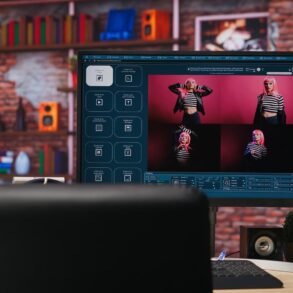



AI image enhancers have completely changed photo editing in 2026. What used to take hours in Photoshop like fixing blurry shots, sharpening details, upscaling low-res images, removing noise, restoring old photos, now happens in seconds with free online tools or simple apps. These AI tools use smart models to guess and add realistic details, making everyday photos look professional without needing editing skills.
The best part? Many great options are free (or have solid free tiers), work in the browser or on your phone, and give impressive results fast. Whether fixing family photos, preparing social media posts, or upscaling product shots, these tools save time and frustration.
Here are the easiest free AI enhancers that stand out right now, plus pro tips to get the best results in minutes.
Top Free (or Mostly Free) AI Image Enhancers in 2026
- Upscayl: Best Completely Free Desktop Option This open-source tool runs on your computer (Windows, Mac, Linux) with no internet needed after download. It upscales images up to 16x, reduces noise, and sharpens details using powerful models like Real-ESRGAN. Why it’s great: No watermarks, unlimited use, privacy-focused (processes locally). How to use: Download from upscayl.org, drag in a photo, choose a model (e.g., “General Photo” or “Digital Art”), select upscale factor (2x–4x usually best), and export. Pro tip: For portraits, use the “Faces” model if available — it handles skin and eyes beautifully without over-smoothing.
- Canva AI Image Enhancer: Easiest Browser Tool for Beginners Canva’s built-in enhancer (free tier) fixes dark, blurry, or oversaturated photos with one click — upscale up to 8x, sharpen, and balance colors. Why it’s great: No signup for basic use, integrates with Canva’s editor for cropping/text/frames after enhancing. How to use: Go to canva.com, upload photo → Edit → Use “Image Enhancer” tool → Apply and download. Pro tip: Combine with Canva’s Magic Studio (free credits) for auto-background removal or object tweaks — perfect for social media graphics or quick product photos.
- LetsEnhance.io: Strong Free Tier for Serious Upscaling Offers 10 free credits (enough for several images) with modes for photos, old scans, digital art. Upscales to huge sizes (up to 500MP) with smart detail addition. Why it’s great: High-quality results, multiple enhancement modes (e.g., “Smart Enhance” for natural look). How to use: Upload at letsenhance.io, choose mode (try “Photo” or “Old Photo” for portraits), process, download. Pro tip: Use “Creative” mode sparingly for artistic shots — it adds details creatively but can change realism; stick to “Smart” for everyday photos.
- PhotoGrid AI Image Enhancer: Fast, No-Signup Browser Tool Completely free, no watermark, batch up to 5 photos, upscales to 4K quickly. Great for quick fixes on blurry or low-res images. Why it’s great: Instant results, simple interface, no account needed. How to use: Visit photogrid.app/image-enhancer, upload, click enhance, download. Pro tip: Ideal for batch-processing vacation photos or social posts, do several at once to save time.
- Remini (Mobile App): Best for Face Restoration & Quick Mobile Fixes Free daily uses on iOS/Android, excels at sharpening faces, restoring old photos, and reducing blur. Why it’s great: One-tap magic for portraits makes eyes pop, smooths skin naturally. How to use: Download Remini app, upload photo, select “Enhance” or “Restore,” wait seconds, save. Pro tip: For non-face photos, try “General Enhance” works well on landscapes or products, but faces are where it shines most.
Pro Tips for Stunning Results in Minutes
- Start with the right image: AI works best on slightly blurry/low-res shots (not completely destroyed ones). Avoid over-processing good photos. It can add fake details or “plastic” look.
- Choose upscale wisely: 2x–4x is usually safest; higher (8x+) can introduce artifacts unless the tool is advanced (like LetsEnhance or Upscayl).
- Compare models/modes: Most tools offer presets (photo vs art vs face). Test 2–3 on the same image to see what looks most natural.
- Fix lighting first: If a photo is too dark/bright, use basic brightness tools (in Canva or phone editor) before AI enhancement — it gives better final results.
- Batch when possible: Tools like PhotoGrid or Upscayl handle multiples — perfect for editing a whole album fast.
- Check privacy: Browser tools process in cloud (fine for non-sensitive photos); offline ones like Upscayl keep images private.
- Combine tools: Enhance in one (e.g., Remini for faces), then upscale in another (Upscayl) for ultimate control.
- Save originals: Always keep the raw file. AI edits are destructive, so compare before/after.
These free AI enhancers have made pro-level photo editing accessible to everyone. No Photoshop subscription or skills needed. A blurry old family photo can look sharp and vibrant in under a minute, or a phone snapshot can become social-media ready instantly.
Start with one tool today, upload a recent blurry shot to Canva or PhotoGrid and see the difference. In minutes, you’ll have stunning results that used to take hours (or weren’t possible at all).
AI isn’t replacing creativity, it’s just making good photos look even better, faster.